Use Repeat Count to Repeat an Action or Whole Script
Auto Mouse Click provides flexible repetition settings through the Repeat Count parameter. You can repeat an individual macro action multiple times within a script or configure the entire script sequence to loop continuously or for a specified number of iterations.
Script-Level Repeat Count
The overall script Repeat Count input is located in the bottom right corner of the main window, below the Save button. By default, it is set to 1 (executing the complete sequence once). You can change this to any integer value or set it to 0 for continuous looping until manually stopped.
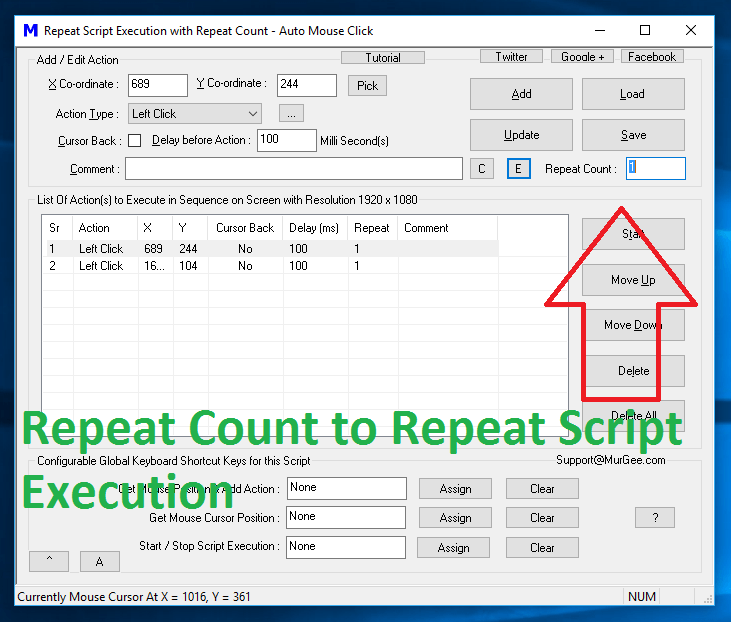
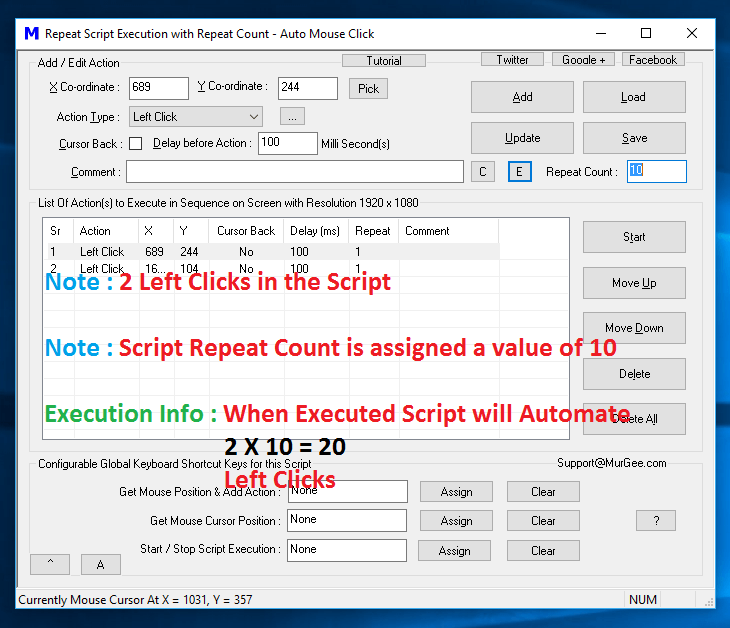
In the basic script shown above, two automated left mouse clicks are executed sequentially. If you update the script Repeat Count to 10, the entire two-click sequence repeats 10 times in succession (Click 1 → Click 2 → Click 1 → Click 2...), for a total of 20 clicks.
Action-Level Repeat Count
You can also configure the Repeat Count for individual actions inside a script using the Action Parameter Properties dialog. In the screenshot below, Action #2 has been assigned a Repeat Count of 2, while the other actions remain set to 1.
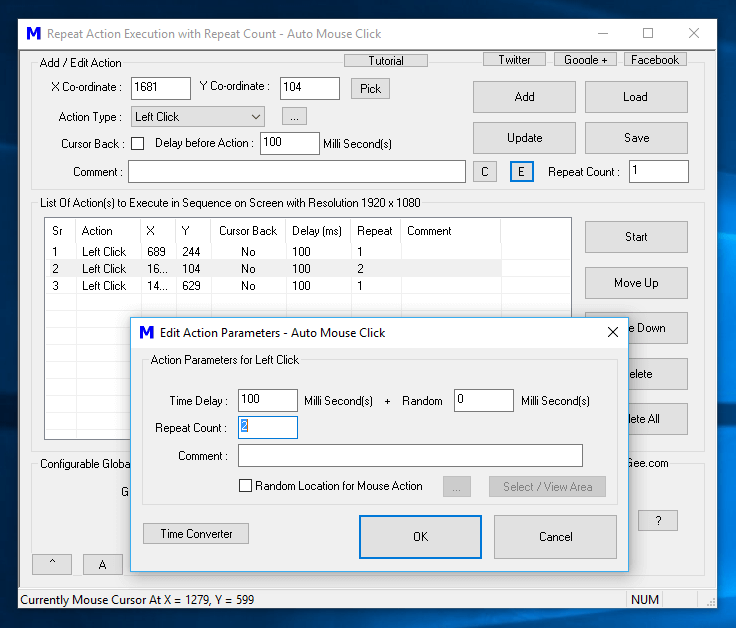
During script execution, the sequence proceeds as follows:
- Executes Left Click #1 once.
- Executes Left Click #2 twice consecutively (because its action Repeat Count is set to 2).
- Executes Left Click #3 once.
Combining action-level repeat counts with overall script repeat counts allows you to build complex macro loops without duplicating actions unnecessarily.