Auto Capture Screenshots with Auto Mouse Click
Now you can automatically capture screenshots of any window, primary monitor, all extended monitors in a multi-monitor computer, or a rectangular screen area as displayed in the screenshot below. Capturing screenshots can be an easy way to monitor an application's performance over a long duration when you want a macro script to run unattended for a while. The captured screenshots can be stored as PNG, BMP, or JPG files by selecting the Image File Type as displayed in the screenshot below.
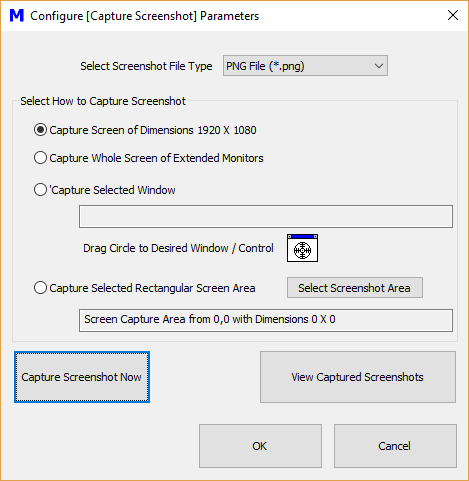
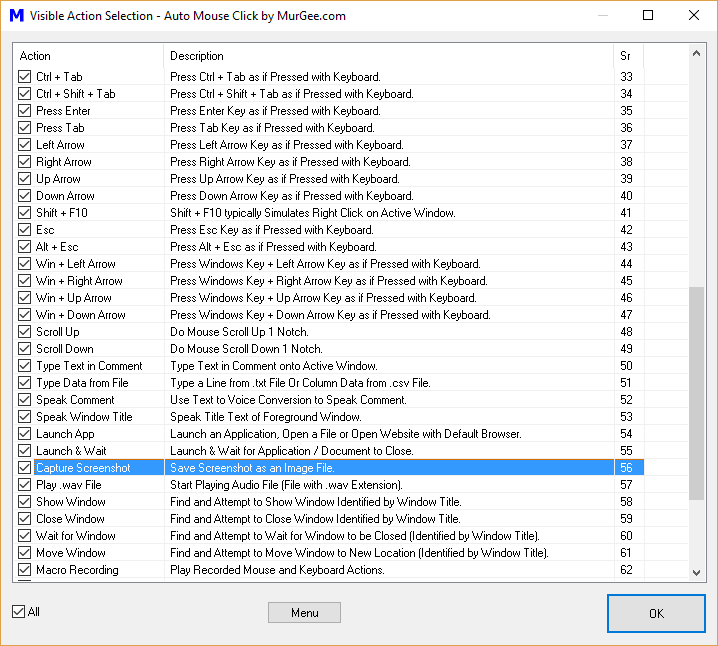
The Capture Screenshot macro action is available for selection in the Macro Action Selection screen as displayed below. This macro action is enabled by default and can be added to any macro script just like any other mouse clicking, key pressing, or window automation action. To configure the Capture Screenshot macro action parameters, double-click on the macro action in the script to view the settings and parameters available for the macro action as displayed in the screenshot above.
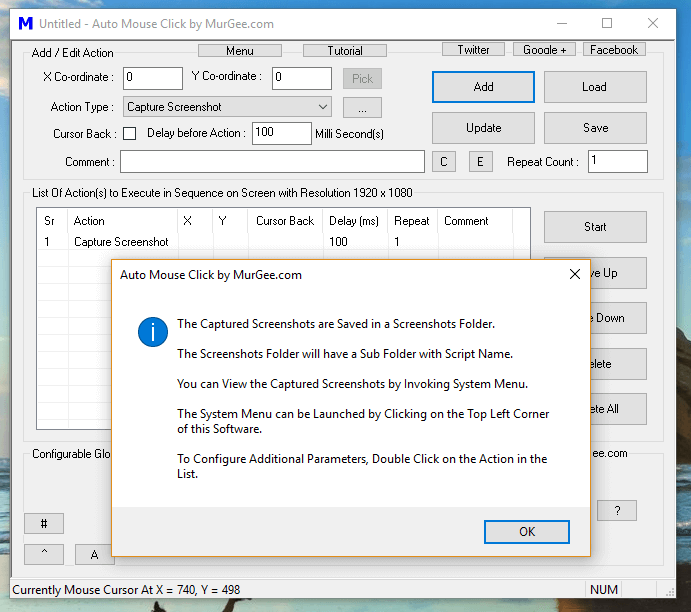
For all actions which have configurable parameters available in the script, an informational message is displayed to inform you about the extra parameters. When you add the Capture Screenshot action to the list of actions in the macro, you will see an information message displaying guidance on what to do next as displayed in the screenshot below. When you are comfortable with the Capture Screenshot action, you can disable the information message popup from the Settings of this Windows Automation Software application.
All captured screenshots are stored in a folder named after the current script name and can be easily opened. When you capture a screenshot of a window, the screenshot file name is created by combining the window name with the current date and time. When capturing screenshots of a screen area, primary monitor, or all monitors, the file name is created using the date and time at the moment of capture.
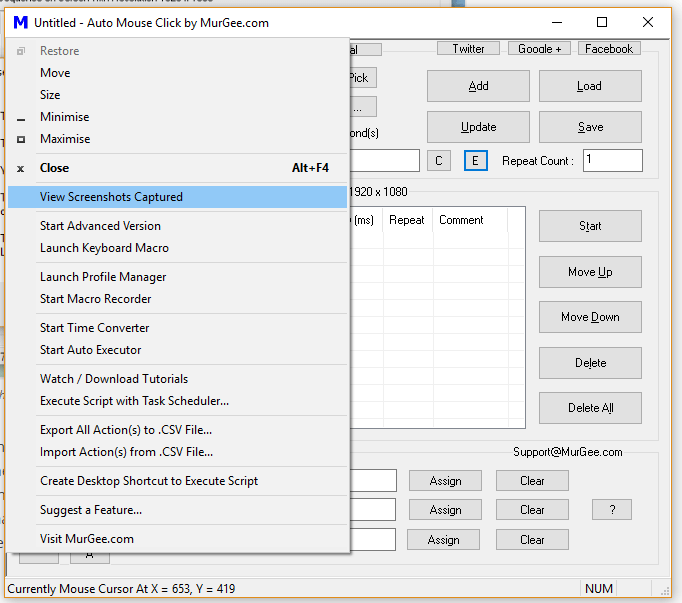
You can add the Capture Screenshot action to any macro script, and screenshots will be captured automatically whenever the macro script is executed. You can view all captured screenshots from the system menu as displayed in the screenshot above. The hard disk space required to store screenshots depends on the parameters you select for the Capture Screenshot macro action. Use the Capture Screenshot macro action to monitor any application, game, or whole computer screen easily.