Keyboard Macro for Games
This guide explains how to use the built-in Keyboard Macro recorder feature in Auto Mouse Click. It allows you to record and playback keystroke sequences seamlessly in games and desktop applications. The Keyboard Macro tool can be launched directly from the main software menu, as shown in the screenshot below. It is especially useful for gaming scenarios that require rapid or repeated key combinations.
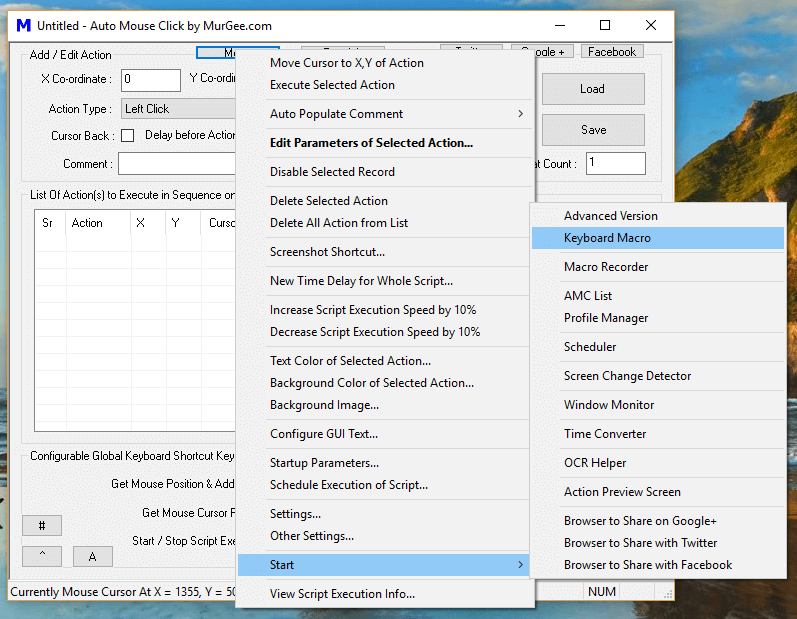
Once launched, the intuitive interface makes it easy to record key combinations, adjust delays between keystrokes, and assign playback hotkeys.
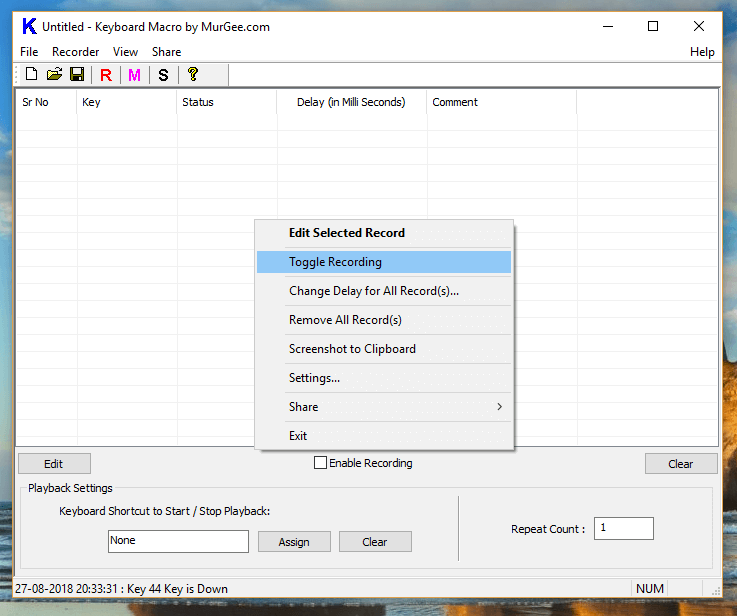
How to Use Keyboard Macros in Games
Follow these steps to record, edit, and trigger keystroke sequences for games or other desktop applications requiring rapid key inputs:
- Enable recording using the Enable Recording checkbox on the main window, or right-click and select Toggle Recording.
- Press your desired key sequence. You can minimize or move the Keyboard Macro window while recording. Once finished, uncheck the recording box or select Toggle Recording again to stop.
- Review the recorded keystroke list in the main list view. You can open the edit window to fine-tune delay times between individual key press and key release events, giving you precise control over simulation timing.
- Assign a shortcut key to trigger macro playback. Optionally, adjust the Repeat Count from 1 to any number to repeat the entire keystroke sequence during playback.
- Test and verify macro playback in a text editor first. Once satisfied with the timing and sequence, use the hotkey in your game.
- Save your recorded keystrokes to a `.KeyboardMacro` file by clicking Save. You can reload saved macro files at any time.
Sample Keyboard Macro File
The screenshot below displays a sample Keyboard Macro file containing recorded keystrokes. All recorded key press and release actions are displayed in list order alongside the playback hotkey and repeat settings.
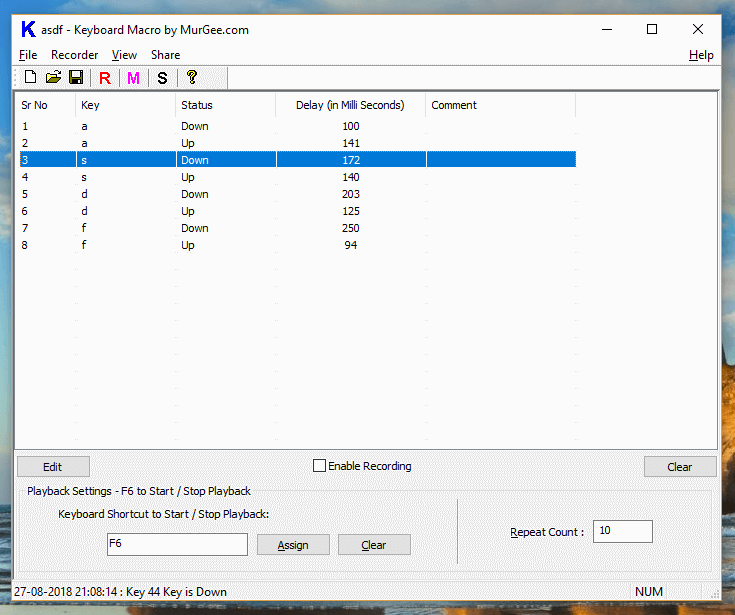
With the sample macro data loaded, pressing F6 executes the recorded keystroke sequence in active application windows and repeats the sequence 10 times. Individual keystrokes and comment tags can be edited at any time.
In addition to the standalone Keyboard Macro tool, Auto Mouse Click provides numerous Keyboard Automation Actions within standard scripts. If you need to record and replay both mouse and keyboard actions together, you can also utilize Macro Recording Actions.