Configure Auto Mouse Click Software with Settings and other Parameters
The Macro Script Execution, Behavior of Script Editor and other Parameters of the Auto Mouse Click Application Software can be configured and controlled with Settings and other Parameters. This post talks about various Settings and other Configurable Parameters available to control the general behavior of the Application. To get started, do a Right Click on the White Colored List of Script Actions as displayed in the Screenshot below and review all the Menu Items present in the Context Menu.
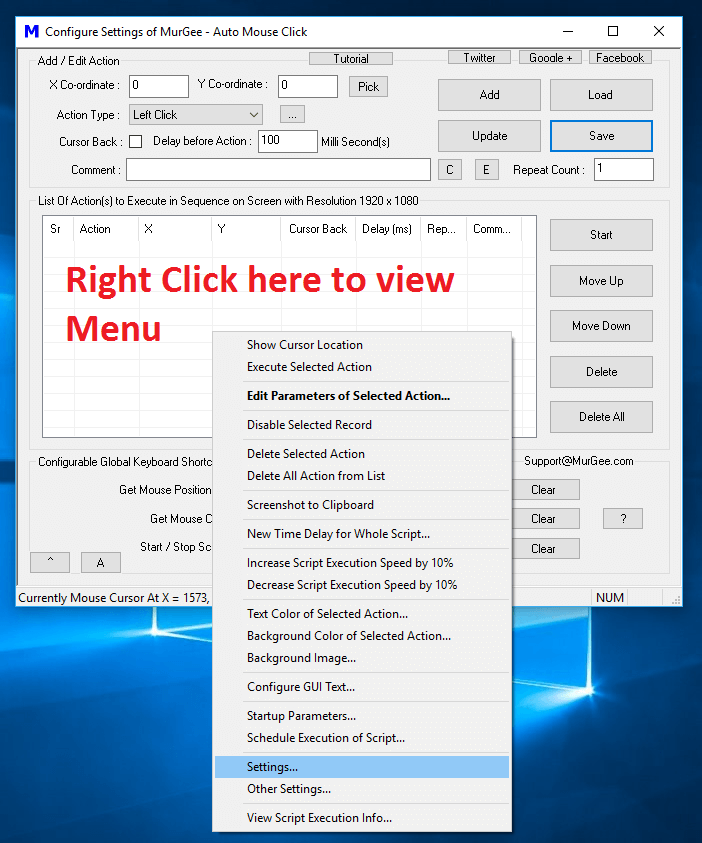
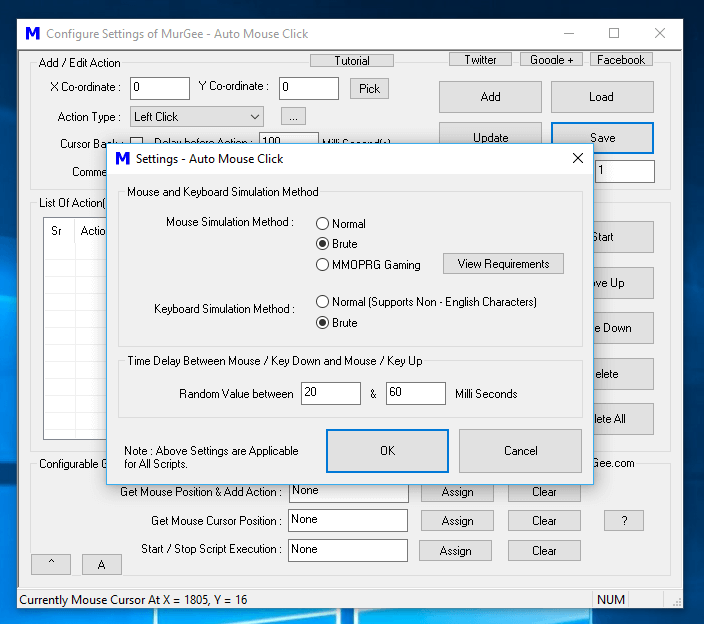
From the Right Click Menu, do locate the Menu Item titled Settings… as displayed in the Screenshot above. Once you have located the Settings Menu Item, click on it to view the Settings Screen. Given below parameters are available in the Settings Screen :
- Mouse Simulation Method
- Keyboard Simulation Method
- Time Delay between Mouse Down and Mouse Up
- Time Delay between Keystroke Down and Keystroke Up
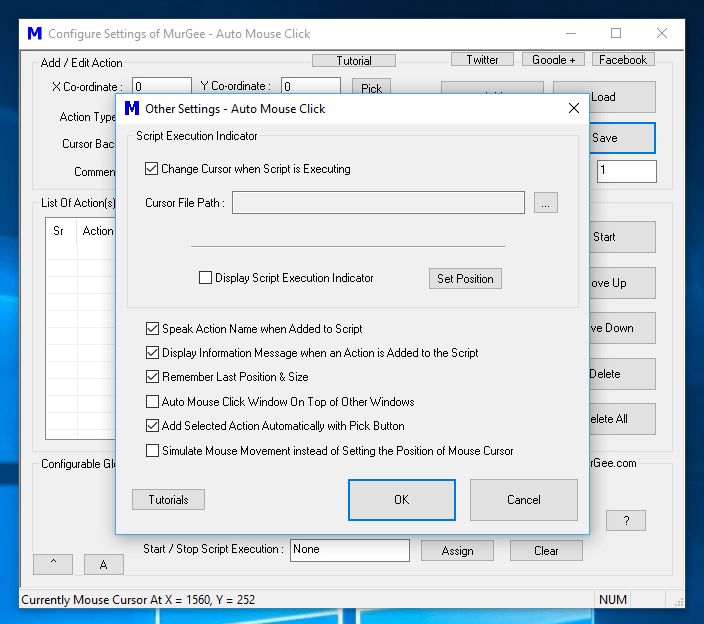
There are Other Settings available which control various parameters which control behavior of inbuilt Script Editor and other parameters as given below:
- Whether to Change Mouse Cursor when the Script is Executing.
- Custom Cursor File path to be displayed when Script is Executing.
- Whether to display Script Execution Indicator when Script is Executing.
- Whether to Speak Macro Script Action Name when the Macro Script is added to the Script in Script Editor.
- Whether to display Information Message when an Action is Added to the Macro Script.
- Remember Last Position and Size of the Main Application Window.
- Keep Main Window on Top of other Windows.
- Control whether Pick button adds selected action or it just reads Mouse Cursor Location and updates them in the X and Y fields.
- Control whether Mouse Movements are simulated or done in a single step.
Apart from above Settings which are applicable to the Application in General, there are Startup Parameters which are applicable for individual Scripts. In case you want to control the Startup behavior of an individual Script, use the Startup Parameters Screen as displayed in the Screenshot below.
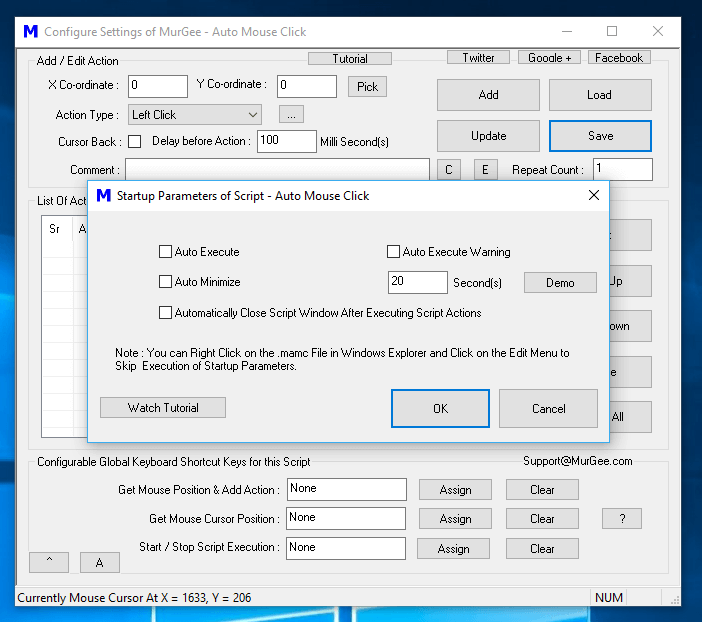
By default when a Macro Script is opened by Double Clicking on a .mamc file in Windows Explorer, the Script Editor Window opens and loads the Script for Editing. The Startup Parameters Screen allows you to change this behavior and instead of opening the Script File for Editing, you can mark it to Automatically Start Execution with the help of Auto Execute Checkbox as displayed in the Screenshot above.
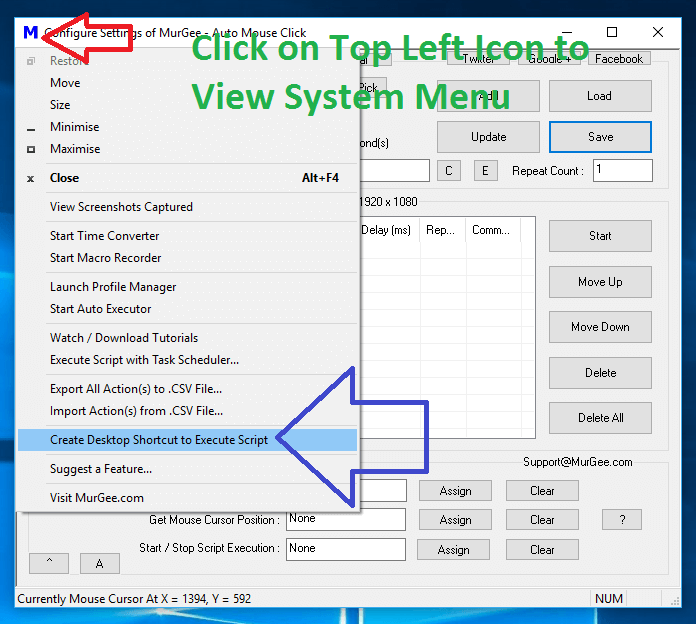
Once Auto Execution for a Macro Script is enabled, you can configure other parameters for this Automatic Script Execution. Note that the Auto Execution is applicable only for individual Script and is not Applicable to all the Scripts. Yes you can even create a Desktop Shortcut to Execute the Macro Script as displayed in the Screenshot above.