Keyboard Automation Macro Actions in Macro Script
Automation of Keystrokes is supported by this Keyboard Automation Software for Windows. Here you can automate a variety of Keyboard Actions, including single keystrokes, combination keystrokes, and even Text Typing. Have a look at the screenshot below, which displays the list of Keyboard Automation Macro Actions from the Keyboard Automation Script.
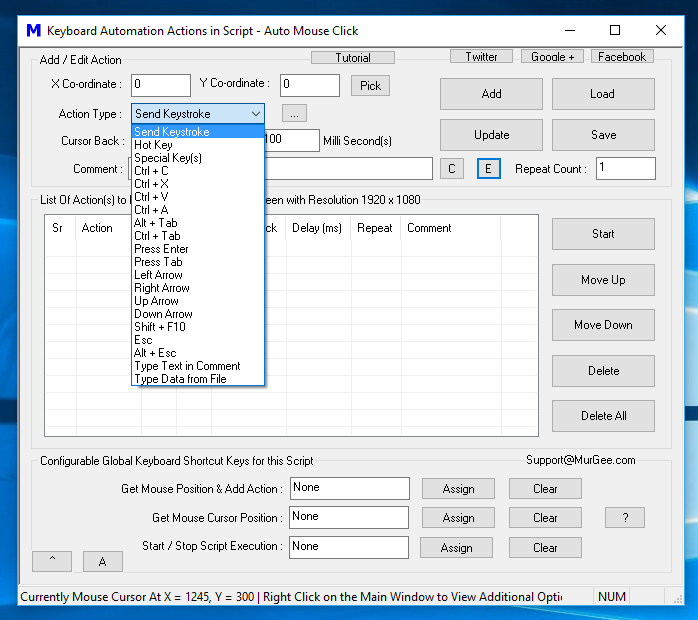
Keyboard Automation Macro Actions in Macro Script
Yes, apart from Keyboard Automation, this software does support Mouse Automation and other Application Windows Automation Tasks. However, for the sake of simplicity, only Keyboard Automation Macro Actions are displayed in the screenshot above. The following Keyboard Automation Actions are supported along with a short description. Explore them to find a suitable Keyboard Automation Macro Action for your Keyboard Automation needs.
- Send Keystroke: This Keyboard Macro Action allows you to send a single Keystroke to a specific Window or send the Keystroke to the Active Application Window. Apart from sending Alphanumeric Keystrokes, you can send almost all the Keyboard Keys from your Macro Script to either a specific Window or to the Application Window in focus. Apart from Alphanumeric keys, you can automate Function Keys, Arrow Keys, Ctrl Key, Shift Key, Tab Key, Numeric Keypad Keys, and much more.
- Hot Key: This Keyboard Macro Action allows you to send single or combination Keystrokes to the Active Application Window. Keyboard Combination Keys like Ctrl + W, Ctrl + Shift + T, or even single Keystrokes can be sent to the active Application Window with this Keyboard Automation Macro.
- Special Key(s): This Keyboard Automation Macro Action allows you to send almost any Keyboard Key to the Active Application Window. Unlike other Keyboard Automation Macro Actions listed above, this Macro Action uses .NET to send Keystrokes to the Active Application Window and allows any possible combination of Keystrokes to be sent to the Active Application Window.
- Ctrl + C: Anyone who has used a Windows Computer knows the power of the Ctrl + C Keyboard combination Keys, which is used to Copy selected Files, Text, Images, and anything else to the Clipboard. You can automate the Ctrl + C Keyboard Combination Keys with this Keyboard Macro Action and Automate the Copy command in your Macro Script.
- Ctrl + X: This Keyboard Key combination allows you to Cut selected object(s). In Windows Explorer, the Ctrl + X Keyboard Key combination is used to Cut selected File(s) which can later be used in combination with the Ctrl + V Keyboard combination to Move selected File(s) to a different Folder or Drive.
- Ctrl + V: The Paste Command (Keyboard Shortcut Ctrl + V) in Windows is often used with the Ctrl + C or Ctrl + X Keyboard Keys to Copy or Move selected objects in Windows, respectively. With the appropriate usage of Ctrl + C, Ctrl + X, and Ctrl + V, you can automate repetitive or massive Copy / Paste or Move / Paste Commands with the appropriate Keyboard Macro Actions in the Script.
- Ctrl + A: The Keyboard Combination Ctrl + A is often used in text editors to select all the text in the Text Field. In Windows Explorer, you can select all the Files / Folders by Automating the Ctrl + A Keyboard Combination. You can use Ctrl + C or Ctrl + X to copy or move all the selected object(s) and then later use Ctrl + V to Copy or Move selected Object(s) to a different Location. This Keyboard macro Action can be really handy when you have to Move / Copy lots of Files, Folders, Text, or other Objects to another location.
- Alt + Tab: This Keyboard Macro Action, a combination of the Alt Key and Tab Key on the Keyboard, is often used in Windows to switch between multiple running Application Windows. The Alt + Tab Macro Action allows you to switch between running Application Windows easily and quickly.
- Ctrl + Tab: The Ctrl + Tab Keyboard Keys can be used to navigate between different tabs of the same Application like Browsers and other Windows Applications which support Tabbed Windows. When you want to Copy or Move data from a Window displayed in one Tab to an Application Window in another Tab, you can Automate Ctrl + Tab with this Keyboard Automation Macro in your Script.
- Press Enter: Automate the pressing of the Enter or Return Key on your Keyboard with the Press Enter Macro Action. As the Enter Keystroke is sent to the Active Application Window, make sure that the appropriate Window or field has Focus.
- Press Tab: By Automating the Tab Key, you can navigate between different controls of an Application Window. In Text Editors, the Tab Key has a special meaning and leaves the space of a Tab between Text. Automate the Tab Key to move focus to the appropriate control of an Application Window or to the appropriate link / field of a Webpage and use Enter or any other appropriate Keystroke to Automate selection / activation of the selected control. The post Press Tab Key multiple times provides an example usage and detailed explanation of the process of using the Tab Key Macro Action in a Script.
- Left, Right, Up and Down Arrow Keys: Automation of Arrow Keys is supported by appropriate Macro Actions and is used to move the blinking cursor to the appropriate location in Text Editors. Many Games require you to press Arrow Keys to move your Gaming Character around the Game.
- Shift + F10: This Keyboard Key Combination is often used as a replacement for the Right Mouse Click and can be really handy to invoke a Context Menu below the current Mouse Cursor Location. There is a slight difference between Right Clicking and Automating the Keyboard Combination Shift + F10 Keyboard Keys. Use the Appropriate Macro Action depending on your Windows Automation needs.
- Esc: The Esc Keyboard Key can be used to cancel or close an Application Window. The purpose of the Esc Key varies according to the Application and you can Automate pressing and Releasing of the Esc Key with this Keyboard Macro Action in your Script.
- Alt + Esc: The Alt + Esc lets you cycle through Active Application Windows and is a little bit different than the above mentioned Alt + Tab Keyboard Key Combination. By Automating Alt + Esc, you can easily cycle through currently opened application Windows.
- Type Text in Comment: This Keyboard Typing Macro Action allows you to Automate Typing of pre-defined Text onto the Active Application Window. The post Type Text from Macro Script provides a detailed explanation and usage of this Text Typing Macro Action.
- Type Data from File: This Keyboard Automation Macro combines Text Typing and Reading Text Data from a Unicode Text File. Once Text Data is read from a Unicode File, the Text is typed onto the Active Application Window by this Keyboard Automation Macro. Visit the Type Text from File post on this blog to learn about the requirements and procedure to use this Keyboard Automation Macro.
The Time required to Automate the above mentioned Keyboard Keys / Text Typing depends on the Repeat Count of the Macro, the Time Delay specified for the Macro Action, the Repeat Count of the whole Script, and on the Time Delay configured in settings between pressing and releasing of individual Keystrokes as displayed in the Settings Screen below which is invocable from the Right Click or Context menu of this Windows Automation Software.
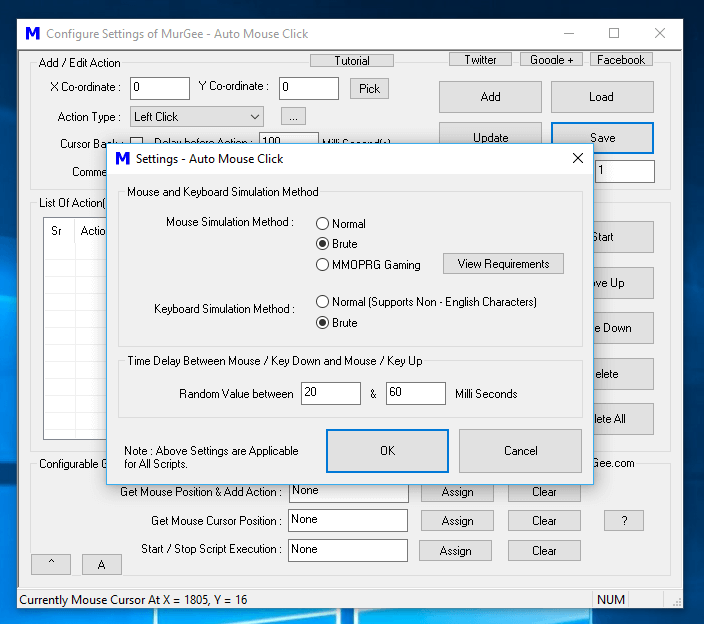
Settings Screen to Configure Mouse and Keyboard Simulation Method and Time Delay between Mouse and Key Up
As Keystrokes are sent to a specified Window or to the Active Application Window, the Mouse Cursor Location is irrelevant for most of the above mentioned Keyboard Automation Macro Actions. The Shift + F10 Keyboard Macro Action displays a Context Menu depending on the Mouse Cursor Location. Apart from the Shift + F10 Keyboard Macro, you must make sure that the appropriate Text Field has focus to accept Automated Keyboard Input provided to the Application Window by the Macro Script.