Manage Multiple Scripts to Click Mouse or Press Keystroke
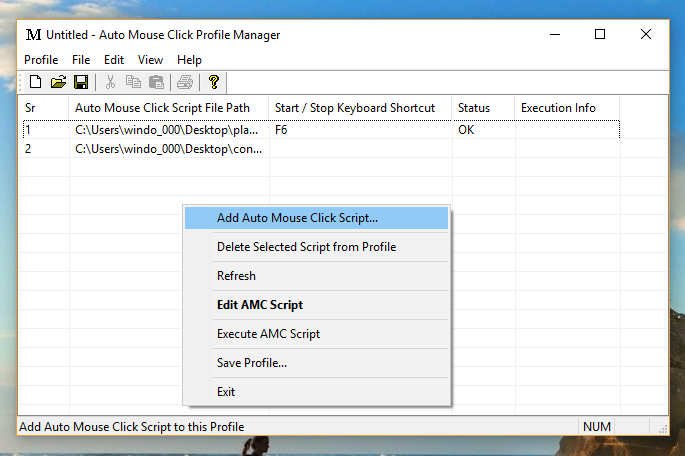
You can manage multiple Auto Mouse Click script files using the built-in Profile Manager included in the Auto Mouse Click installation. The Profile Manager can be launched via a Desktop Shortcut or from the Programs Menu. As shown in the screenshot below, you can add multiple macro scripts to a profile using the Profile Manager interface or right-click context menu.
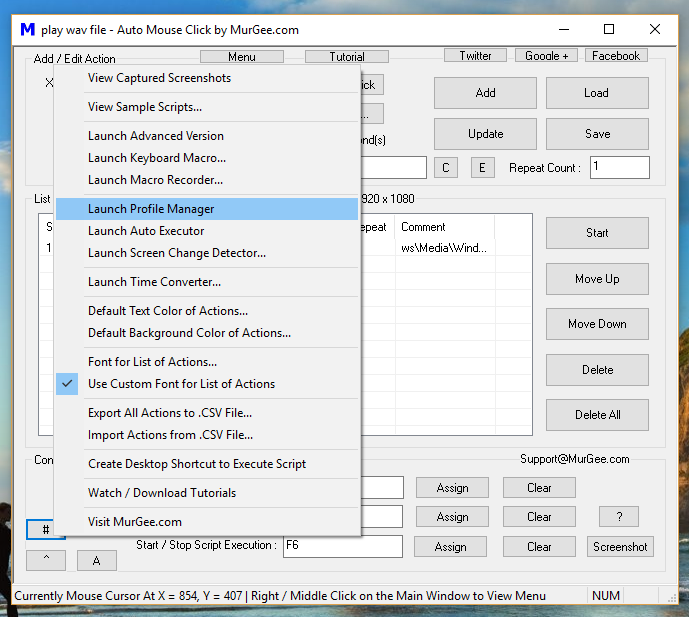
Once multiple macro scripts are loaded into the Profile Manager, you can use assigned shortcut keys (as described in How to Execute Macro Script) to start and stop macro execution. Hotkeys are assigned in the Macro Editor, as shown in the screenshot below. The screenshot also highlights an easy way to open Profile Manager from the bottom-left menu button.
Two installation editions of Auto Mouse Click are available for download:
- Admin Edition: This version requires Administrator privileges during installation and works with games, specialized software, and elevated administrative applications. The Admin Edition does not display User Account Control (UAC) prompts during routine operation.
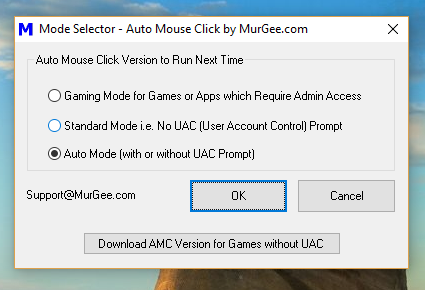
- Non-Admin Edition: This version can be installed without Administrator rights on your computer and includes a Mode Selector to configure execution modes. Depending on your Windows User Account privileges, you may or may not encounter UAC prompts.
When running the Admin Edition, you do not need to respond to UAC prompts, and Profile Manager operates without elevation prompts. This version is best suited for computers where you have administrative installation access.
When running the Non-Admin Edition, UAC prompts may appear depending on the Mode Selector settings. Note that the Admin Edition does not require or include a Mode Selector.
The Admin Edition is ideal for personal gaming rigs or workstation PCs where administrator access is available. Conversely, the Non-Admin Edition is suited for restricted office environments where administrative software installation is restricted.
Because Profile Manager executes macro scripts using the active edition and mode of Auto Mouse Click, review the recommendations above to choose the appropriate setup. You can also save and load multiple profile files (`.profile`) in Profile Manager for seamless management of macro collections.