Monitor Script Execution Information
While your macro script is running, you can monitor execution progress using the Script Execution Info window shown below. This compact window automatically remembers its screen position across sessions and displays live status details for active macro actions, including action type, comment text, total executed count, and upcoming action delay times. You can reposition the window anytime by dragging its title bar to a new location on your screen.
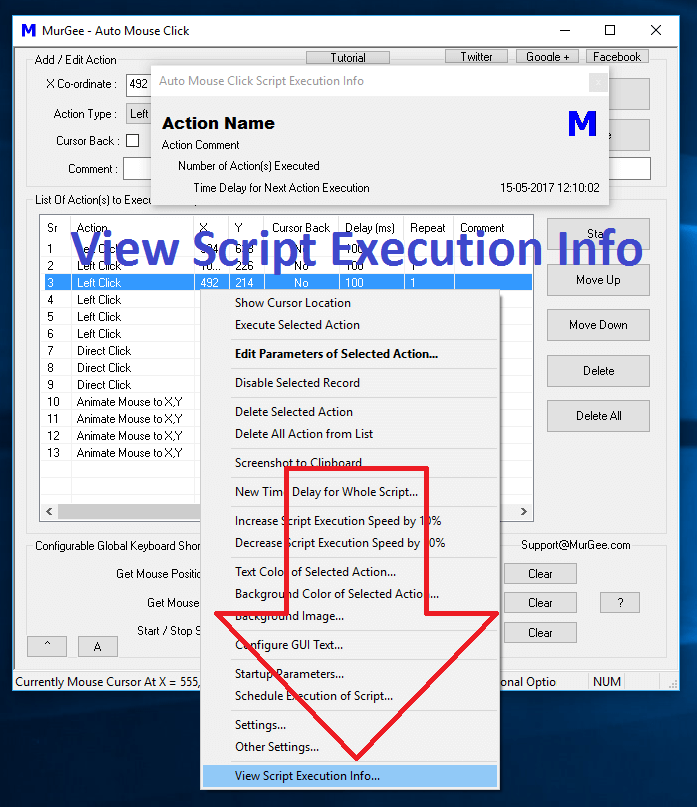
To open the info window, right-click anywhere in the main application window and select View Script Execution Info from the context menu. Depending on your screen layout and monitor setup, you can keep the main Auto Mouse Click window visible or minimize it. When minimized, a smaller, unobtrusive Script Execution Indicator can be enabled from the Other Settings window.
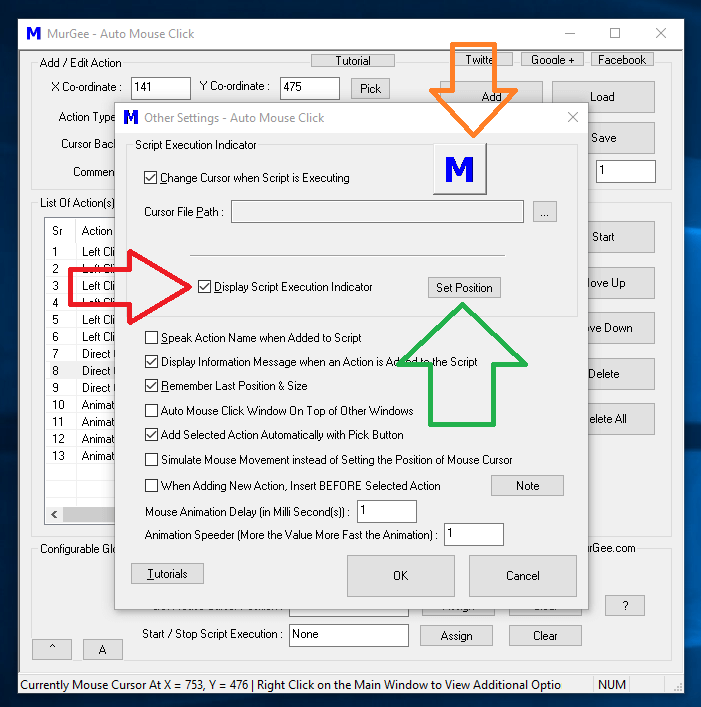
In the Other Settings menu, check the box to enable the Script Execution Indicator overlay. Use the Set Position button to position the indicator anywhere on your display. Because the indicator remains on top of other windows, position it away from active click targets. If your script uses Direct Click actions (which interact directly with application windows without moving the physical cursor), the indicator can safely be placed anywhere.
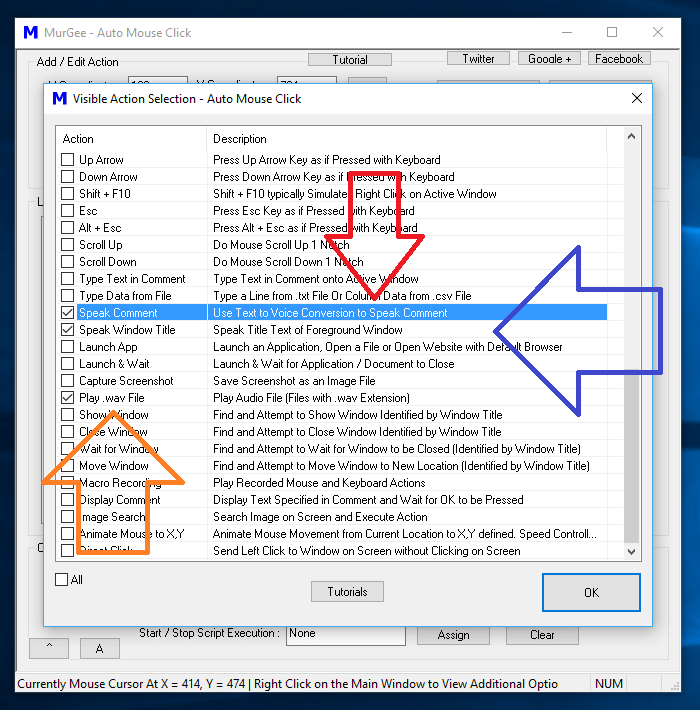
In addition to visual indicators, Auto Mouse Click supports three types of audible alerts during script playback:
- Speak Comment: Converts action comment text into spoken audio using Text-to-Speech (TTS) synthesis when executed.
- Speak Window Title: Reads aloud the title bar text of the currently active foreground application window.
- Play .wav File: Plays a designated WAV audio file directly when triggered, without requiring external media players.
For custom monitoring needs, you can also launch external applications from your macro script to log steps or drive custom counter utilities.