Graphical User Interface Customization for Windows Automation Software
The Graphical User Interface (GUI) of this Windows Automation Software is fully customizable, allowing font selection, color selection, background images, and much more. This post provides information on how you can customize the GUI of this software for easy readability and clear identification of macro scripts. When using High Definition monitors, you can switch to larger fonts and custom color schemes to make the application even easier to read and operate.
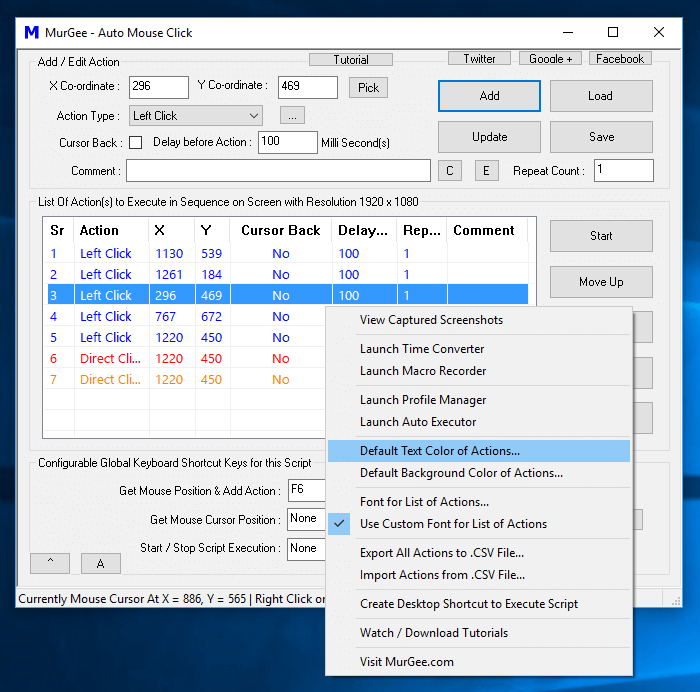
The screenshot above displays the Middle Mouse Click menu, which allows you to change the default color of actions in the list to be executed. It also allows you to select a default background color for the macro actions, as well as customize fonts for optimal display readability. Notice in the screenshot that blue has been selected as the default text color for the list of actions, and the last two macro actions have been assigned distinct background colors via the right-click menu. The last two macro actions in the script click the mouse without moving the cursor, so highlighting them with custom colors helps draw attention to special execution behaviors. You can also use the comment field to document any special considerations for individual macro actions.
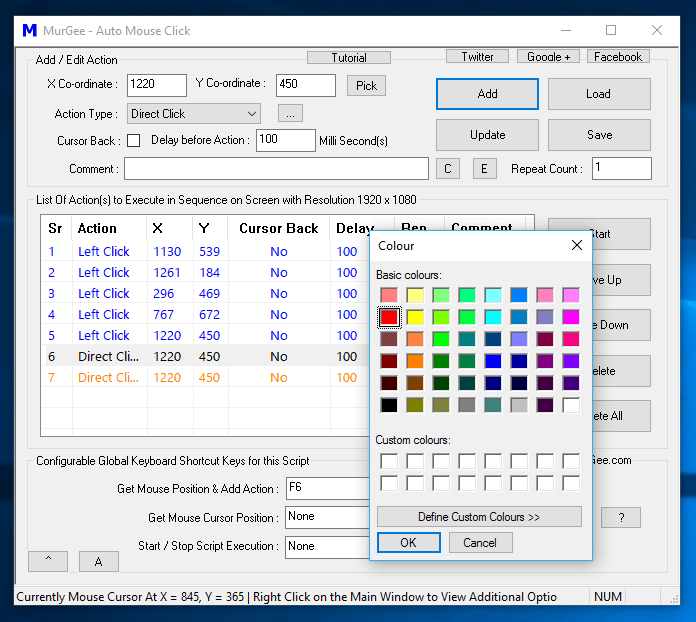
Invoking the Middle Mouse Click menu requires pressing the 3rd mouse button (usually the scroll wheel button between the left and right buttons). Most physical mice feature a scroll wheel that acts as a middle-click button when pressed down. On laptops, the middle-click menu can typically be triggered by pressing both the left and right touchpad buttons simultaneously.
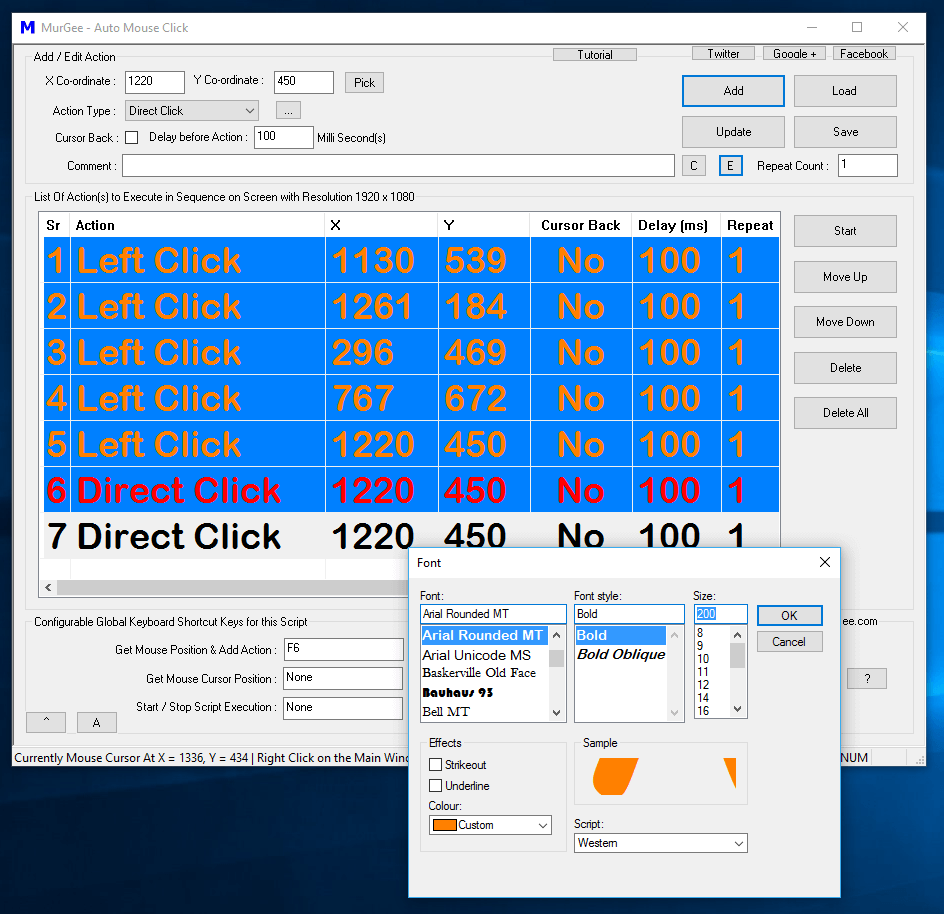
Note in the screenshot above that a custom font has been set for improved visibility of the macro action list. This is particularly helpful when working with multiple high-resolution displays. The font selection applies across all macro scripts, whereas default text colors and background colors are saved per macro script. Additionally, you can assign custom background images to the action list from the right-click menu for easy visual identification of your scripts.
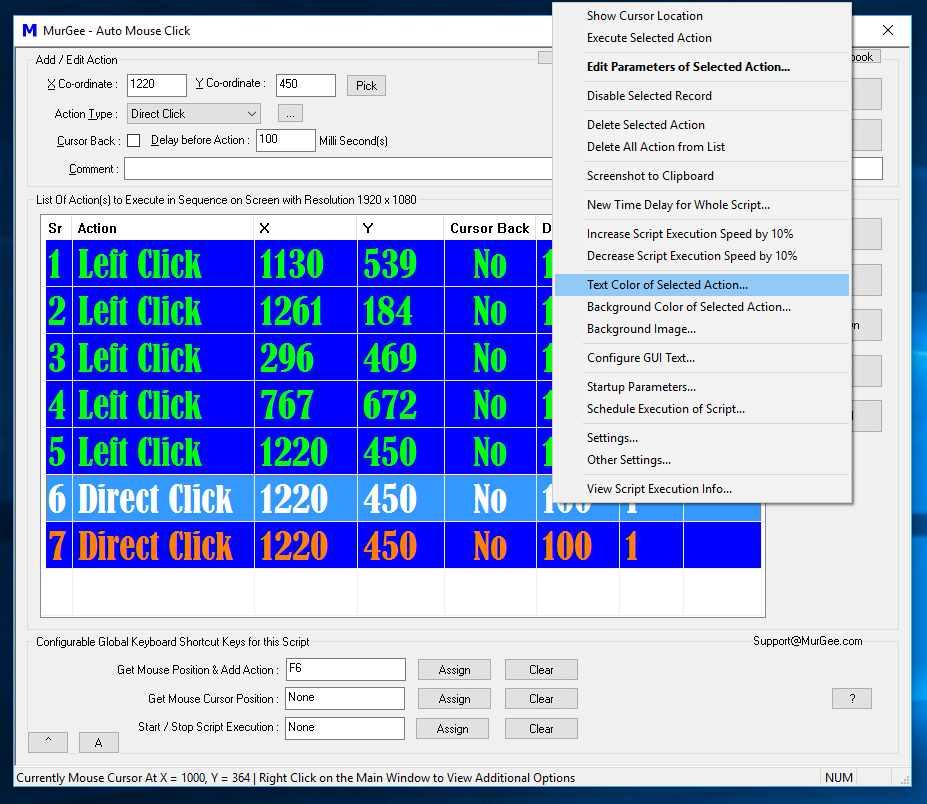
The main window of this Windows Automation Software is fully resizable, and column widths can be adjusted as needed. To reset all columns to their default widths, simply click on the list header. Careful attention has been paid to software design to ensure that Windows Automation Software remains straightforward, flexible, and easy to use. Download the free trial to automate repetitive mouse clicks, key presses, and desktop workflows while saving time and boosting accuracy.