Running Multiple Instances of Auto Mouse Click
You can run multiple instances of Auto Mouse Click simultaneously, with each instance loaded with a distinct macro script. The easiest way to launch multiple instances is to double-click individual script files (`.mamc`) in Windows Explorer. Each instance runs independently and creates its own Taskbar icon, though script windows can be hidden while hotkeys remain active.
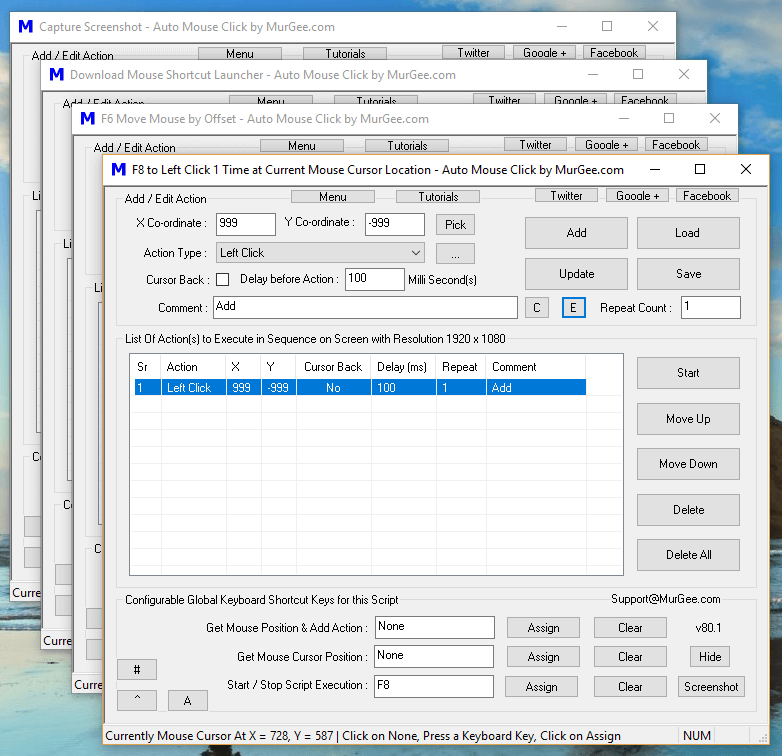
When running numerous macro scripts, managing individual windows can become cumbersome. A practical approach is to assign descriptive names to each script file and configure unique hotkeys. The Auto Mouse Click List (AMC List) utility allows you to organize, hide, or restore multiple script instances from a centralized panel.
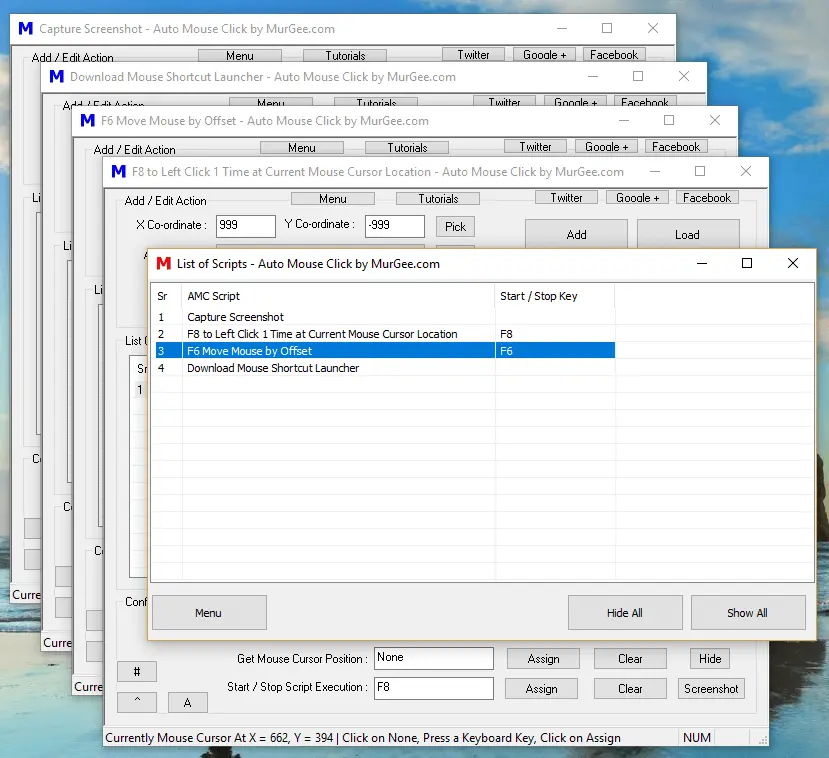
Hiding a script window removes its entry from the Windows Taskbar, but assigned hotkeys remain fully functional. Using AMC List is faster than opening scripts through Profile Manager because hidden scripts remain pre-loaded in memory for immediate hotkey execution.
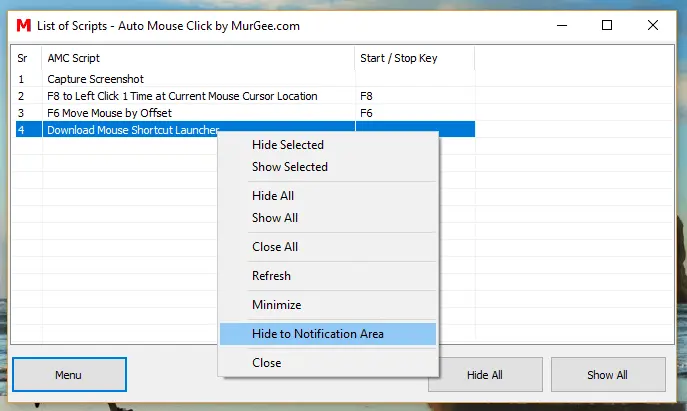
The AMC List window itself can be minimized to the system notification tray, keeping your taskbar clutter-free while displaying active script names and assigned hotkeys.
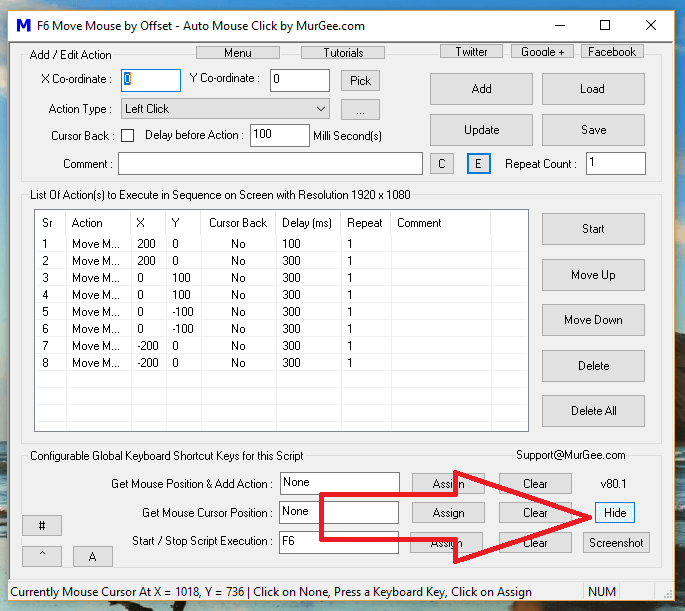
Individual script windows can also be hidden directly by clicking the Hide button in the main window. The AMC List application provides options to hide or unhide all instances at once.
Launching Auto Mouse Click List
To open AMC List while running multiple Auto Mouse Click instances, use either of the following methods:
-
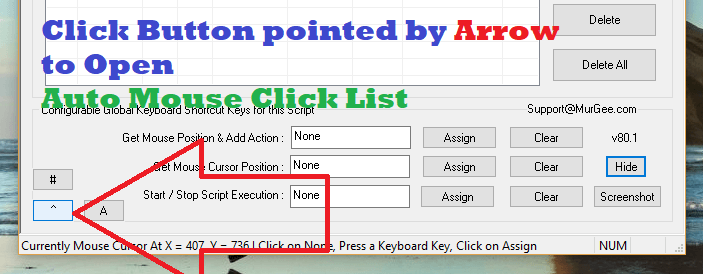
Click the List Button in the Main Script Window -
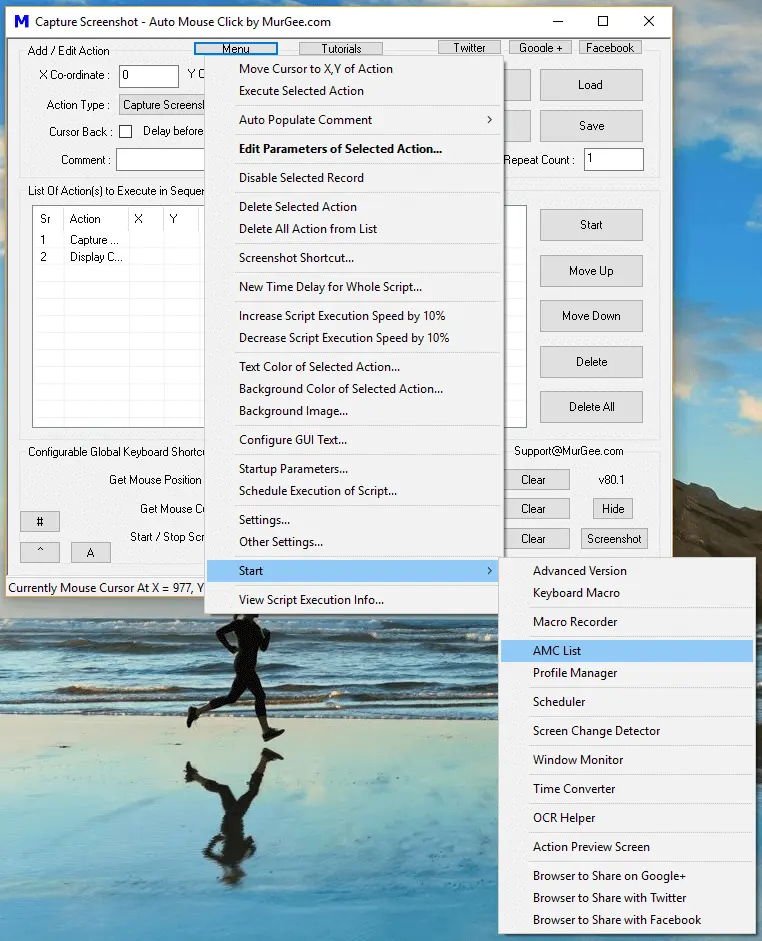
Select AMC List from the Application Context Menu
Closing the AMC List application automatically restores all hidden script windows. For quick single-script hiding without AMC List, click the Hide button in the main window; the script icon moves to the system notification tray, from which it can be unhidden for editing or saving.