Record and Playback Mouse and Keyboard with a Macro Action
In addition to adding individual mouse clicks or keystrokes to a script, you can embed full macro recordings containing recorded mouse movements, clicks, and keyboard inputs. The Macro Recording action allows you to capture human interactions in real time and play them back as part of your macro script. To get started, select and add a Macro Recording action to your script list.
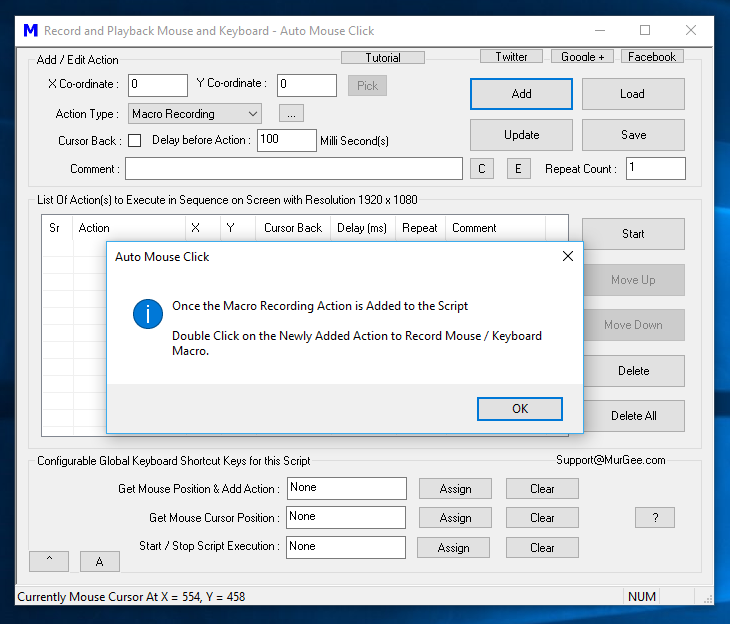
Double-click the newly added Macro Recording action row to open the Macro Recorder window shown below. You can choose to record mouse actions, keyboard inputs, or both simultaneously. Dedicated hotkeys (such as F9 in the example below) are used to start and stop the recording process. Because the Macro Recorder window stays on top of other applications, you can drag it to a convenient screen location or minimize it while recording.
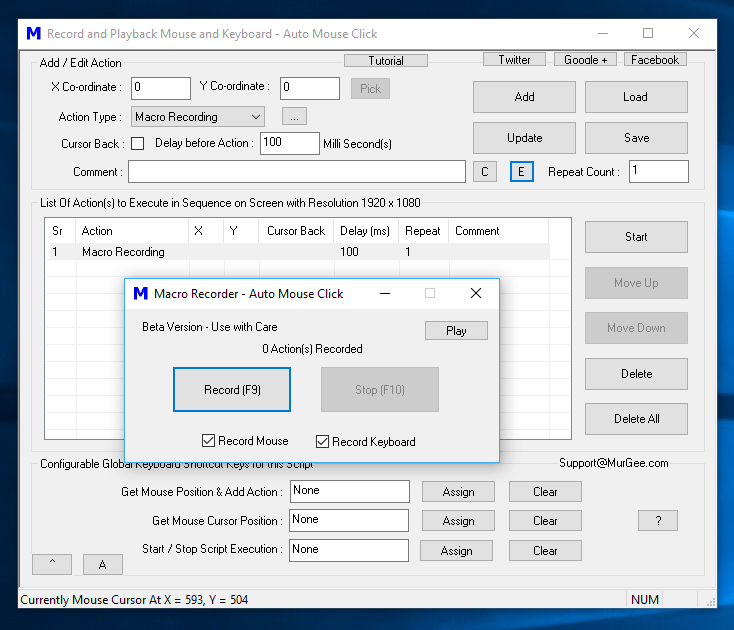
Once you have finished recording your inputs, stop the recording and test playback using the Play button in the Macro Recorder. After verifying that the playback matches your expected sequence, close the Macro Recorder window.
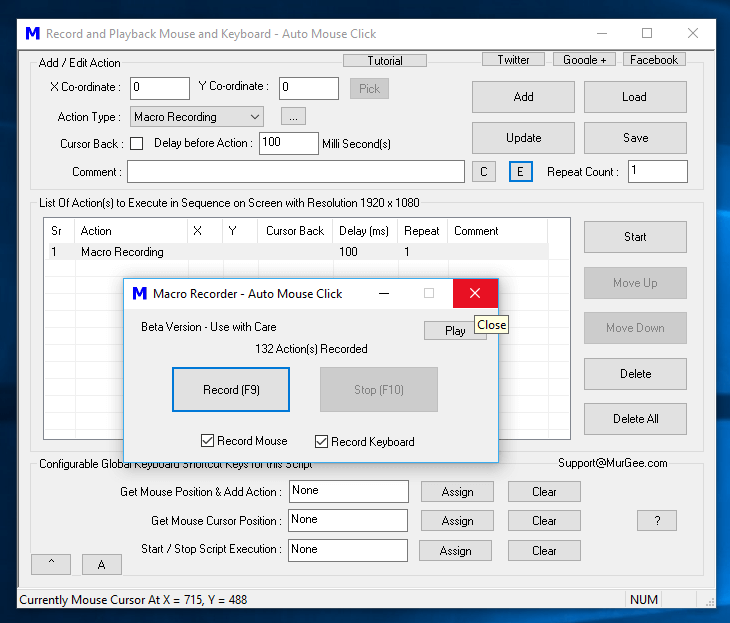
Your recorded macro sequence is now embedded inside the script alongside any other macro actions you have configured. You can save your script (`.mamc`) and trigger it via hotkey or schedule. Remember that automated mouse clicks depend on fixed screen coordinates, so ensure target windows and UI elements are in expected positions during playback.